
The installer is delivered as a single PKG file. During installation, it performs three actions:
1. Installs the Rip Curl SearchGPS Desktop app
2. Automatically launches the official Silicon Labs CP210x driver installer
3. Guides the user through enabling the required macOS driver extension
Please follow the steps below based on your macOS version.
macOS Sequoia (macOS 15)
Installation Steps
1. Start the Installer
• Open the Rip Curl SearchGPS.pkg installer.
• Follow the on-screen prompts.
• When asked, agree to install the Silicon Labs CP210x driver.
2. Approve the Driver Extension
During the Silicon Labs installer, a macOS message will appear:
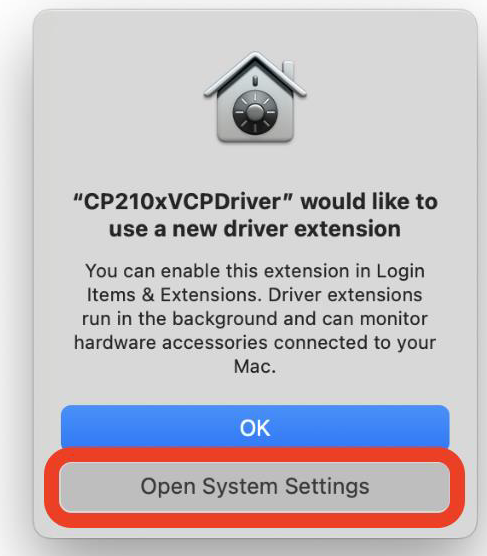
“CP210xVCPDriver would like to use a new driver extension.”
Click Open System Settings.
3. Enable the Extension Manually
In System Settings:
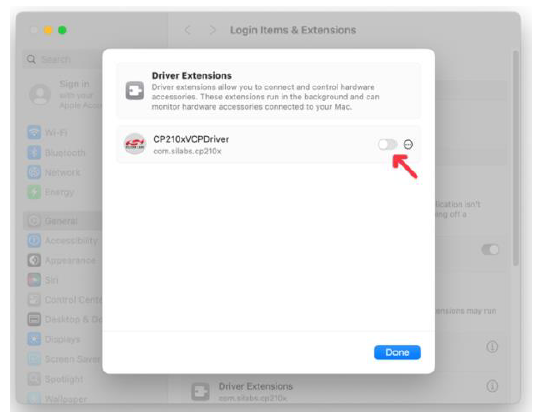
1. Go to General → Login Items & Extensions
2. Select Extensions
3. Select Driver Extensions
4. Toggle CP210xVCPDriver.app ON
5. Click Done
Once the driver is enabled, the Silicon Labs installer will automatically complete.
4. Resume the SearchGPS Installer
• After the driver installer closes, the SearchGPS Desktop Installer continues from where it left off.
• Follow the prompts to complete registration and apply available updates.
Installation is now complete.
macOS Sonoma (14) & macOS Ventura (13)
Installation Steps
1. Start the Installer
• Open the Rip Curl SearchGPS.pkg installer.
• Follow the on-screen prompts.
• When asked, agree to install the Silicon Labs CP210x driver.
2. Approve the Driver Extension
During the Silicon Labs installer, a macOS message will appear:
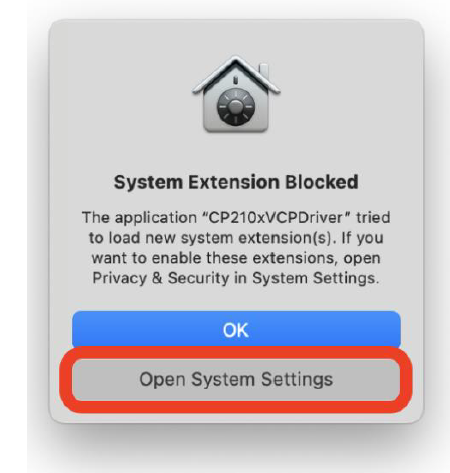
“System Extension Blocked”
Click Open System Settings.
3. Enable the Extension Manually
In System Preferences:
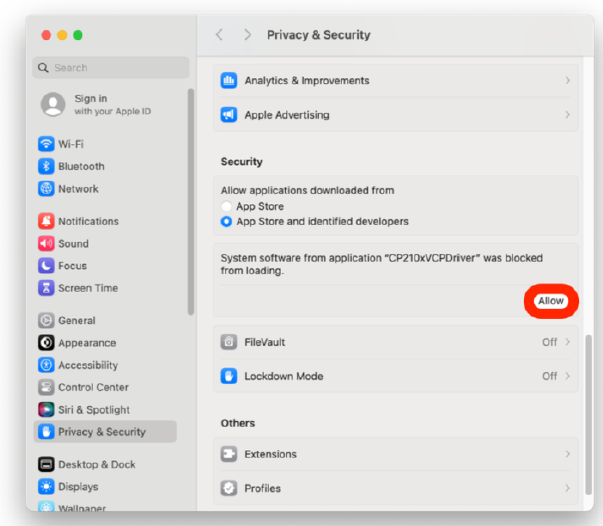
1. Go to Security & Privacy
2. Select Allow (You may need to scroll down to the Security section)
Once the driver is enabled, the Silicon Labs installer will automatically complete.
4. Resume the SearchGPS Installer
4. Resume the SearchGPS Installer
• After the driver installer closes, the SearchGPS Desktop Installer continues from where it left off.
• Follow the prompts to complete registration and apply available updates.
Installation is now complete.
macOS Monterey (macOS 12)
Installation Steps
1. Start the Installer
• Open the Rip Curl SearchGPS.pkg installer.
• Follow the on-screen prompts.
• When asked, agree to install the Silicon Labs CP210x driver.
2. Approve the Driver Extension
During the Silicon Labs installer, a macOS message will appear:
“System
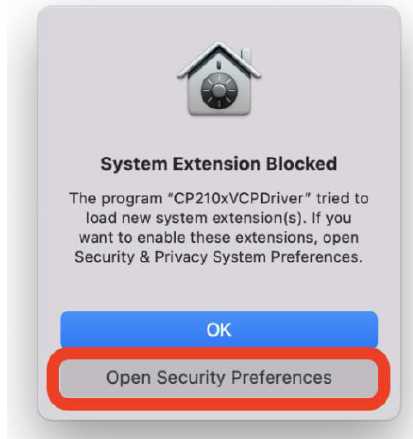
“System Extension Blocked”
Click Open Security Preferences.
3. Enable the Extension Manually
In System Preferences:
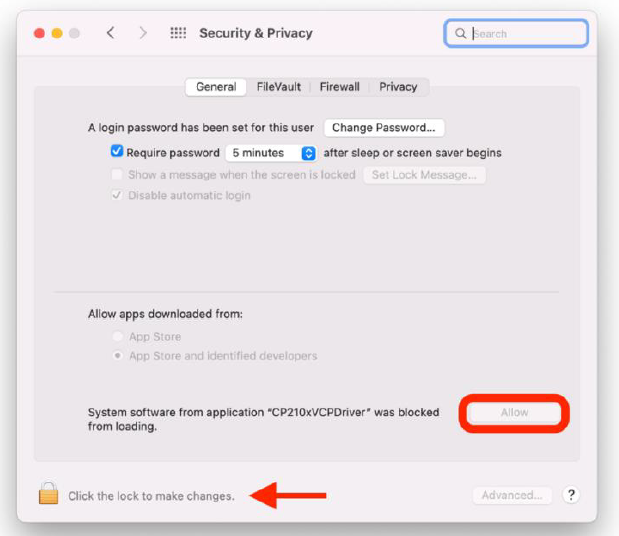
3. Go to Security & Privacy
4. Unlock the Padlock
5. Select Allow
Once the driver is enabled, the Silicon Labs installer will automatically complete.
4. Resume the SearchGPS Installer
• After the driver installer closes, the SearchGPS Desktop Installer continues from where it left off.
• Follow the prompts to complete registration and apply available updates.
Installation is now complete.